

LAB / SHIP LIST
Your checklist. Right inside Premiere.
Tick it off. Then queue the export.
Ship List is a dockable Premiere Pro panel for the last look before you hand off a sequence. Build your own workflow, tick steps per project, and when you are ready, queue the active sequence to Adobe Media Encoder. Local, no account. Premiere Pro 25.6 or later.
Creative Cloud is not listed yet. Use the .ccx for now; Creative Cloud Desktop will warn that it did not come from the Marketplace.
In use

How it works
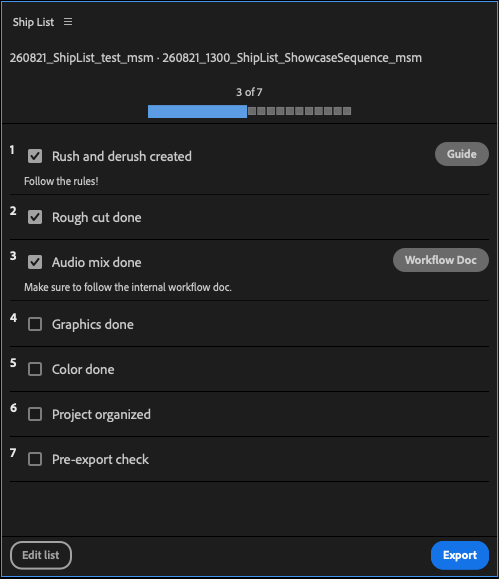
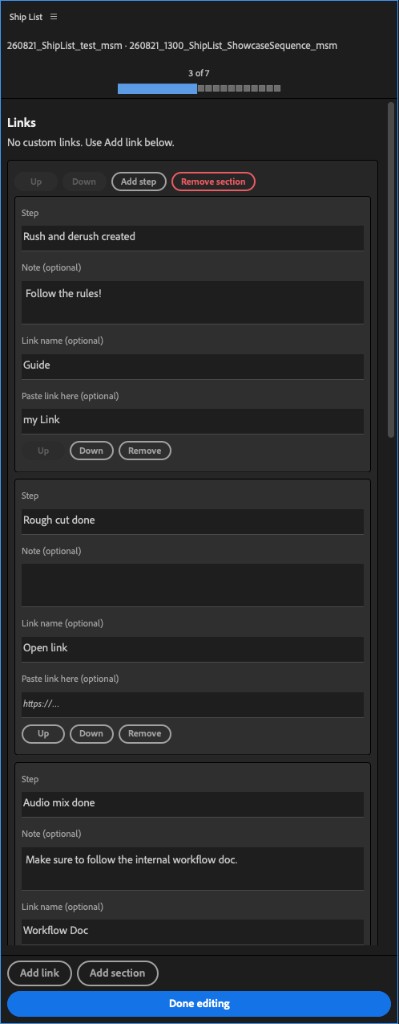
Dock it next to the timeline. The header shows the open project and sequence. Tick steps as you cut; progress stays on that project on this machine. Edit list lets you add sections, reorder steps, and attach notes or named links. The panel menu holds Templates, Save as default for new projects, Reset ticks, Restore starter checklist, and JSON import / export. Export queues the active sequence to Media Encoder. If items are still open, it asks before it queues.
What you get
- Ticks stored per Premiere project. The header names the project and sequence.
- Live checks in the header: no sequence, project not saved, offline clips.
- Sections and steps you rewrite: notes, named links on a step, and custom links for the whole list.
- Named templates in the panel menu, plus Save as default so new projects start with your list and no checkmarks.
- Export queues the active sequence to Adobe Media Encoder, with a confirm if the list is still open.
- Import / export JSON to share a workflow. No login, no analytics, no network unless you open a link.
Install from Creative Cloud
Not listed yet. Use the .ccx until Adobe publishes it. After that, it will be Creative Cloud Desktop → Stock & Marketplace → Plugins, then Window → UXP Plugins → Ship List.
Install the .ccx (backup)
- Download ship-list.ccx.
- Double-click it. If Adobe’s installer opens, confirm the warning and continue with the installation.
- If macOS offers the App Store instead, choose Select Application… Press ⇧⌘G and open: /Library/Application Support/Adobe/Adobe Desktop Common/RemoteComponents/UPI/UnifiedPluginInstallerAgent/UnifiedPluginInstallerAgent.app
- Restart Premiere, then open Window → UXP Plugins → Ship List.
Do not copy folders into UXP/Plugins/External. That path is for development only.
Support: contact@markus-s-motion.com